Description
Back up your files, folders, hard disk drives, partitions, dynamic volumes, applications and system drives, and to restore them later if data loss occurs. This Backup & Restore software includes a disk imaging and cloning tool which can be used to create an exact image of your entire hard disk drive and operating system, to migrate to another hard drive if desired, for Windows 10, 8, 8.1, 7, XP, Vista, Windows Server 2003, 2008 (R2), 2012 (R2), 2016 and Windows Small Business Server 2011.
regular copies of your important data to ensure your data security. If your original data becomes corrupted by accident, you could recover it from the backup image file. AOMEI Backupper can back up files, folders, disks, partitions, volumes, applications, and system drives to a compressed image file.
all of which can be scheduled to be carried out at times chosen by you. If you encounter unexpected problems, such as a system crash, data loss, disk corruption or failure, you can easily recover all your data by restoring it to its original state from the backups.
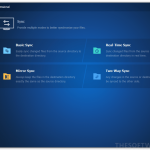
Two-way sync mode keeps the two folders exactly the same. Two-way sync (also called bidirectional sync), is another sync mode that sync items between the source and the destination location.
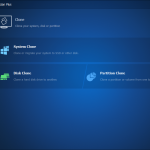
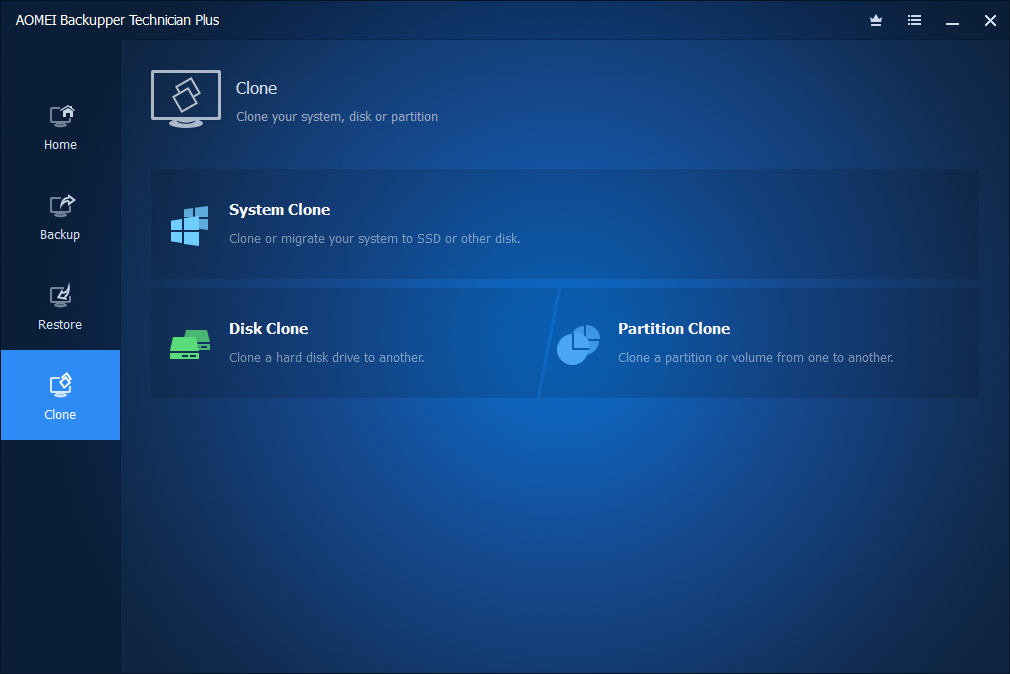
The clone is a very useful feature designed to migrate or transfer your data directly. It will not compress the data and enables you to make an exact and complete copy of a disk or partition directly from one to another.
Specification Features
- Specification Backup
- System Backup – One-click back up Windows, settings, applications, and the files required for the computer to boot.
- Disk Backup – Backup entire disk to protect everything on the drive.
- Partition Backup – Flexibly choose separate partitions to backup, including dynamic disk volumes.
- File Backup – Back up your files and folders automatically or manually to ensure you don’t lose anything with support to simultaneously choose multiple files on the network drive as the backup source.
- File Sync – Synchronize files/folders automatically with a schedule (daily, weekly or monthly) or real-time synchronize files/folders to target path once any changes (addition, modification or deletion) happens in the source path.
- Schedule Backup – Set up a schedule to back up your system and all files automatically, supporting daily, weekly, and monthly.
- Event-triggered Schedule Backups – Automatically perform backup tasks based on user logon & logoff and system startup & shutdown.
- Incremental & Differential Backups – On the basis of a full backup, save time and storage space by only backing up changed data.
- Backup Scheme – Automatically delete old backup images based on specified values (the age or the number) to save backup disk space.
- Command Line Backup – Create backups from the command prompt or using a batch (.bat) file for unattended processing.
- Hot Backup – Create a backup image without closing running applications and restarting the computer.
- Backup to Internal & External Storage Devices – Supports internal hard drives, external USB hard drives, and all flash drives.
- Backup to CD/DVD – Supports CD-R/RW, DVD-R/RW, DVD+R/RW, BD-R.
- Backup to NAS/Network Share – Set Network-Attached Storage (NAS) or share the network as the destination path to easily backup with support to choose a network mapped drive as the destination.
- Backup to cloud drives – Backup and sync files/folders to the desktop apps for Dropbox, Google Drive, OneDrive, SugarSync, Cloudme, Box, and hubiC.
- Specification Restore
- System Restore – Return your computer’s system files and programs to an earlier state when everything was working properly.
- Disk Restore – Get everything back by restoring the whole disk from its image after a computer crash or physical damage.
- Dissimilar Hardware Restore – Restore a backup image created on one computer to another/new computer with dissimilar hardware, or migrate system from physical to virtual (P2V) machine.
- Partition Restore – Restore selective partition or dynamic disk volume to the point you ever backed up to save time and energy.
- File Restore – Restore backed-up versions of files & folders that are lost, damaged, or changed accidentally, like emails, music, movies, etc.
- Selective File Restore – Selectively restore individual files and folders from a backup image file without recovering the entire backup.
- Command Line Restore – Perform a system restore, disk restore, partition restore and dissimilar hardware restore from command prompt.
- Restore System from Bootable Disc
- Restore from Command Prompt
- Restore with Partition Alignment
- Selective Files Restore UEFI/EFI Restore
- Specification Clone
- Disk Clone – Clone a hard drive to another without creating a compressed image file. It allows resizing partitions during the cloning process.
- Partition/Volume Clone – Create an exact duplication of your partition or dynamic disk volume, and exactly transfer data to another partition or hard drive.
- Flexible Clone – Clone from big disk to small disk, and vice versa; support sector-by-sector clone, hot clone, intelligent clone, etc.
- System Clone – Migrate the operating system (OS) and all applications in system drive to the faster SSD or a larger hard disk drive without reinstalling Windows.
- Command Line Clone – Perform system clone, disk clone, partition clone from the command prompt.
- Specification Utilities
- PXE Boot Tool – Startup multiple client computers within LAN through the networks booting by using AOMEI Windows PE and Linux micro-system or your own personalized bootable image file on a master computer for system maintenance.
- Create Bootable Rescue Media – Make Windows PE & Linux bootable CD/DVD or USB flash drive.
- Merge Backup Images – Combine full backup and its chained incremental backups into a single backup for better management.
- Check and Explore Images – Verify the data integrity of the image file to ensure it can be restored successfully.
- Encrypt and Compress Images – Protect image files from unauthorized access with a password. Set the level of compression used for backing up the process to save time or save storage space.
- Comment and Edit Backups – Add a comment for the backup images so that it can be identified easily.
- Split and Delete Backups – Large backups can be split into multiple smaller image files or split to fit for fixed-length media.
- Export/Import Tasks and Logs Management – View what operations the program has done and record the events that occur during a backup process.
- Email Notifications and VSS – Send backup completion status to your email by using your own mail server or AOMEI mail server to let you be informed in the results of the backup. Microsoft Volume Shadow (VSS) allows you to back up files that are in use, especially for open and locked files backup.
- Two-Way Sync – any changes in the source or destination directory will be synced to the other side.
new Version 6.0
- Version 6.0 (Released September 9, 2020)
- Added “Two-Way Sync”: any changes in the source or destination directory will be synced to the other side.
- Redesigned “Tools” interface: a modernized look and all tools can be easy to access.
- Added “Clear Logs”: unnecessary logs can be deleted.
- Optimized “Automatic Update”.
- Fixed issue: Windows Task Scheduler doesn’t run because the installation directory changed after updating AOMEI Backupper.
- Fixed issue: “Incremental Backup Scheme” doesn’t take effect.
- Fixed issue: hidden folders become unhidden after restore.
System Requirements for Windows OS:
- Supported OS:
- Microsoft Windows XP (all editions, 32-bit and 64-bit)
- Microsoft Windows Vista (all editions, 32-bit and 64-bit)
- Microsoft Windows 7 (all editions, 32-bit and 64-bit)
- Microsoft Windows 8/8.1 (all editions, 32-bit and 64-bit)
- Microsoft Windows 10 (all editions, 32-bit and 64-bit)
- Microsoft Windows Server 2003 and 2003 R2 (all editions, 32-bit and 64-bit)
- Microsoft Windows Server 2008 and 2008 R2 (all editions, 32-bit and 64-bit)
- Microsoft Windows Home Server (WHS) 2011 and Windows Small Business Server (SBS) 2011
- Microsoft Windows Server 2012 and 2012 R2(all editions)
- 500 MHz x86 or compatible CPU
- 256MB RAM memory
- Mouse or another pointing device (recommended)
- Support File Systems:
- FAT16
- FAT32
- NTFS
- ReFS
- Ext2/3, ExFAT
- In addition, AOMEI Backupper supports creating bootable rescue media so you may need CD-RW/DVD-RW drive for bootable media creation.
AOMEI Backupper Professional supports almost all storage devices recognized by Windows, such as IDE, SATA, SCSI, SSD, USB external disks, hardware RAID, Network Attached Storage (NAS) and so on. Additionally, AOMEI Backupper supports MBR and GPT disk standards and works effectively with UEFI boot.
How to Install
1. Visit the GIVEAWAY PAGE to get the free license key / Click button ‘Get this item‘ to Download AOMEI Backupper Professional from the homepage
2.Click on the ‘Get this Item‘ button to download the software
3. Copy and paste the license key in the text file to register the software
AMPR-113W7-3P74X-E7V7L
4. Enjoy it for 1-year free!


 yooffers