Specification Features
With just a few clicks you can have your company’s reports, contracts, workflows, agreements, marketing plans, spreadsheets, forms, products list, price list, charts, emails or other printable documents converted in PDF format
UNIVERSAL PRINTING
Using novaPDF you convert to PDF any type of printable document (i.e. DOCX, XLSX, PPTX, PUBX, HTML, TXT,…), accessing its functionality through a printer driver interface.
If novaPDF is installed you can simply click the “Print” button from any document-related Windows app to have your PDF created. You can also use novaPDF’s Getting Started interface.
ADD-INS FOR MICROSOFT® OFFICE
novaPDF comes with add-ins for Microsoft Office applications (Word, Excel, PowerPoint, Publisher, Visio) that allows one-click conversion to PDF.
A major advantage of the add-ins is the conversion of hidden hyperlinks and easy conversion of bookmarks.
PDF SECURITY
You can secure your PDF documents (256-bit AES encryption) by requiring recipients to enter a password in order to view, print or copy/paste content from the PDF.
You are able to control whether the PDF can be viewed, printed, modified, copied or annotated. Furthermore, you can apply digital signatures certify the authenticity of the PDF document.
DIGITAL SIGNATURES
If you have a digital signature you can sign your PDF documents thus certifying the authenticity and integrity of the PDF document for the recipient.
PDF files can be edited thus it’s recommended to sign important PDF documents such as invoices, contracts, agreements to be sure the document hasn’t been altered without authorization.
MERGE PDF FILES
PDF merging refers to adding pages before the content of an existing file (inserting) or adding pages after the content of an existing PDF file (appending).
You can also merge multiple documents from different sources in a single one, so this option is useful when you need to “stich” together documents from different sources.
PDF WATERMARKS
You can stamp an entire PDF (or individual pages from it) with an image or text that can have rotation, opacity, color variation or other effects.
Multiple watermark templates are included (i.e. confidential, date/time, draft, page index/count) but you can also define your own presets.
SEND PDF VIA EMAIL
novaPDF can send created PDFs using the default email client, via SMTP or Outlook. You can send to multiple email addresses (as TO, CC or BCC) and zip the attached PDF file (with password protection).
There are also predefined SMTP servers for easy setup (AIM, AOL, Gmail, Outlook/Hotmail/Live, Yahoo).
PDF OVERLAYS
PDF documents overlay (could also be called PDF stitching), means that you can insert the content of a PDF file in another PDF document (either in front of the existing content or as the background for the existing one) and create a single PDF file containing the merged information.
There are several templates included by default for easy setup (generic, invoice, letterhead).
CLICKABLE LINKS
Any visible text that starts with “http://”, “www”, “mailto:”, “ftp://” or “file://” in your original document can be converted to clickable active PDF links if you choose to do so.
novaPDF can also verify if the file linked to exists during conversion to avoid broken links. Additional options allow opening the file in a new tab and customizing the underlining.
PDF LINEARIZATION
Also called fast web view, PDF linearization allows the creation of PDF files that can be easily viewed via the web browser. Instead of downloading the entire PDF file at once, the PDF will be “streamed” in the browser page-by-page.
FONT EMBEDDING
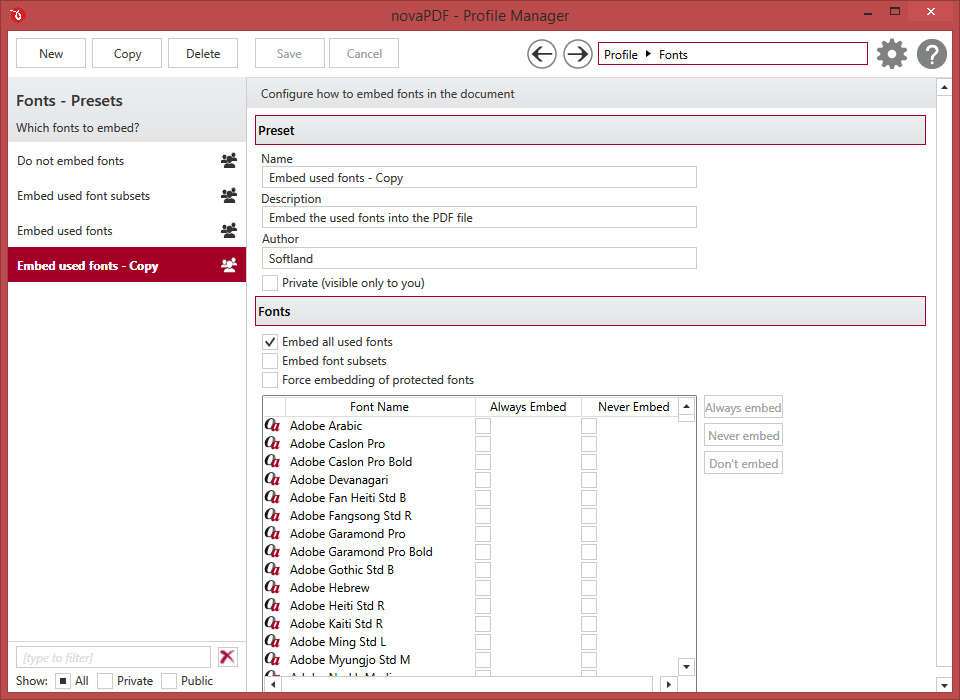
novaPDF supports TrueType, OpenType and Type1 fonts and can embed these (or only subsets) to ensure portability. You can also choose which fonts to be automatically embedded or never embedded.
PRINTER MONITOR
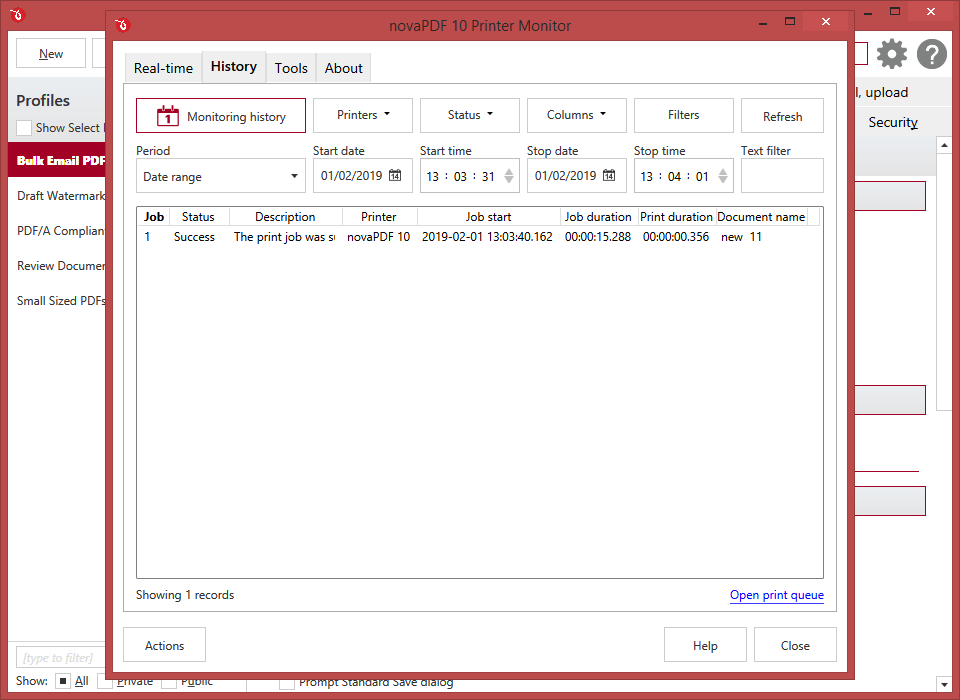
A Printer Monitor tool is distributed with the novaPDF installation as well. This tools allows you to monitor in realtime the status of all printing jobs, as well as record and archive print job info.
LICENSE MANAGEMENT
This allows you to manage the licenses for the installed printer driver. Managing licenses is useful when using the installed printer driver as a print server (via the shared network printer or remotely) to add, license, un-license computers/users, and release licenses.
If you have multiple licenses for a shared PDF printer, client computers will be automatically registered if licenses are available. However you can override that by manually managing what computers get to be licensed based on NetBios or their DNS names.
MULTIPLE PRINT QUEUES
You can add multiple virtual PDF printers all based on the same novaPDF print driver. You can even name the virtual PDF printers anything you want and that’s how they will show up in your list of “Devices and Printers”.
The main advantage of having multiple PDF printers is that you will have a different print queue for each. This means that you can for instance have one of the printers shared as a PDF server while another locally and both could have their own printing queue and creating separate sets of PDFs.
PRIVATE/PUBLIC PROFILES
You can define private printing profiles for future use, each with its own profile settings (i.e. security, signatures, bookmarks). This way you can switch between different printing profiles without having to modify the settings again. These profiles are only available on the computer where they were defined.
However you can also create public profiles that are automatically propagated to all client computers. When using propagated public profiles, you can disallow client computers to switch to a private profiles.
PDF BOOKMARKS
novaPDF can detect the headings in the document to be printed and add bookmarks in the generated PDF files. You have to define the text attributes for the document headings (font, size, style, color) and for the generated bookmarks.
UPLOAD TO FTP/SFTP
After the PDF is generated, novaPDF can automatically upload it to FTP or SFTP servers. You can define presets for the FTP/SFTP servers and use those for different profiles. Aside the generated PDF, other files can also be uploaded.
PDF/A COMPLIANCE
novaPDF can create PDF files compliant with the PDF/A-1a and PDF/A-1b specification for RGB colorspace. PDF/A is a PDF file format used for long-term archiving of documents in electronic format that uses PDF Reference version 1.4.
USER TAGS
You can define pairs of tag/value to be detected before the PDF is generated. novaPDF can then detect those tags from the original document and allows you to use those values as Macro names. It can also remove the whole page where a particular tag/value is present or removing only some parts of the text based on font formatting.
ADD EXTRA METADATA
Aside the regular document information (title, subject, author, keywords), novaPDF can also include extra copyright metadata that will show up in the properties of the resulting PDF file. You can set predefined “Copyrighted/Public Domain” metadata or add your custom copyright one.
AFTER SAVE ACTIONS
Custom actions can be defined to be performed after the PDF was successfully generated, such as opening (or not) the PDF file with the default viewer once it’s created, or running a custom application with given parameters.
novaPDF Professional 10 acts as a virtual printer that creates standard PDF documents from application content (text documents, spreadsheets, presentations, web pages, photos, etc.). For Microsoft Office applications, novaPDF 10 adds a custom tab to the ribbon with the ability to create PDF files that provide more detailed settings than the standard PDF export tools built into Office applications.
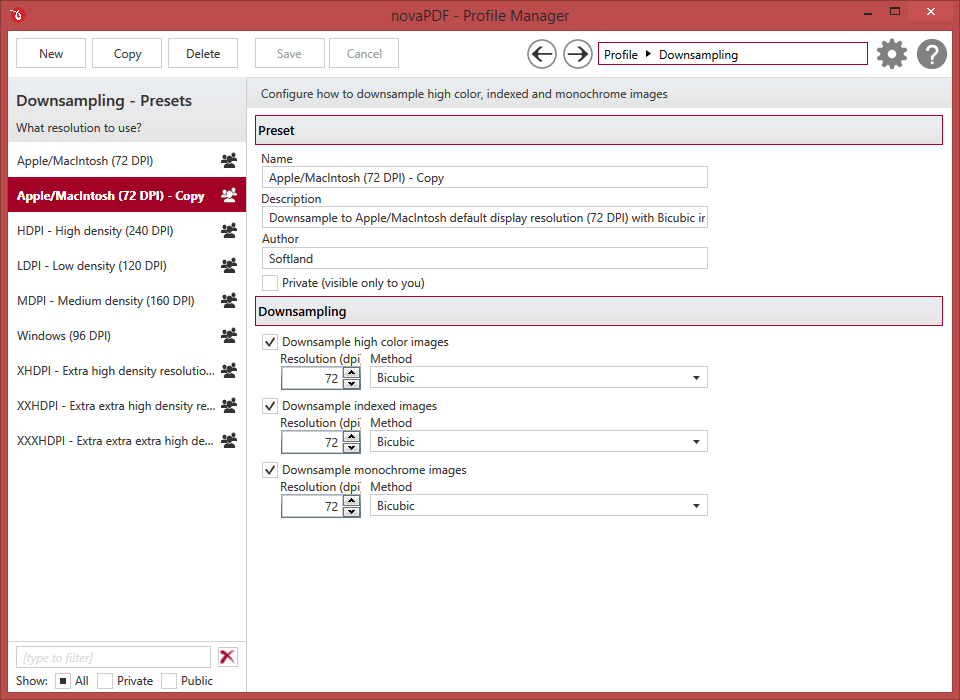
For example, These are preferences for the size and orientation of pages of created PDF documents or their connection to the content of existing PDF files. More customized novaPDF Professional 10 output options are provided by user profiles, which you can create as many as you want for different occasions.
The actual export of the content to PDF documents then proceeds exactly the same, as if you were sending it to a printer connected to your computer. The finished PDF document can be opened in any PDF viewer.
novaPDF 10 has three major editions: Lite, Standard, and Professional. novaPDF Professional has all the features enabled, while novaPDF Lite and Standard have limited functionality.
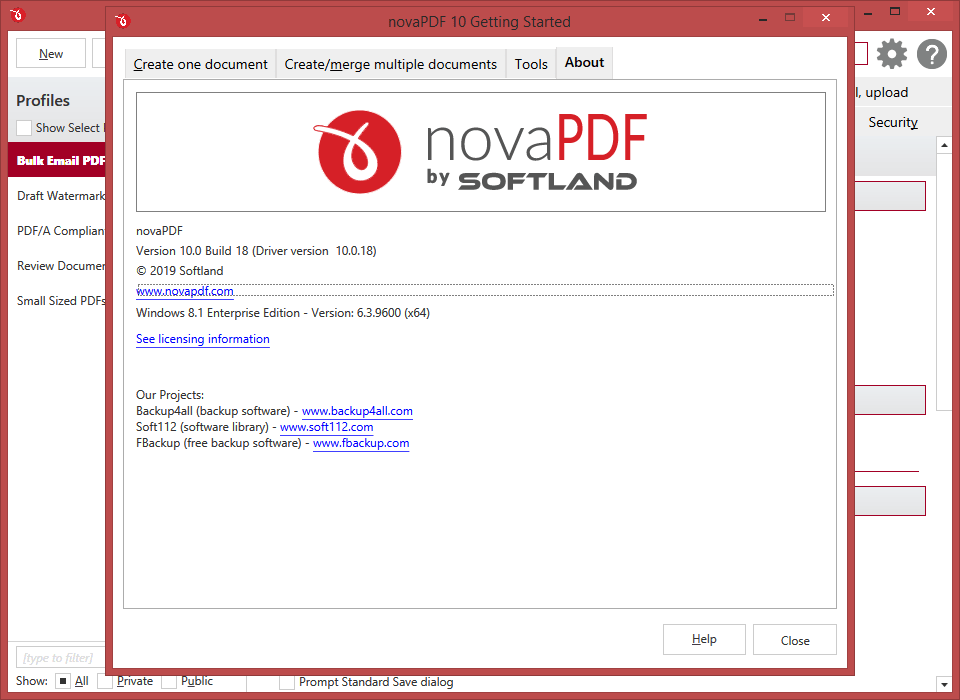
novaPDF Professional 10 – Getting StartedGetting Started~
novaPDF Professional 10 – Merge Documents– Merge Documents
novaPDF Professional 10 – ToolTool
novaPDF Professional 10 – Printer Manager– Printer Manager
novaPDF Professional 10 – Properties– Properties

 yooffers