
64% off Discount – Window Manager for Mac: Lifetime Subscription One Monitor, No Problem! By Simple Dragging, This App Automatically Splits Your Screen into Several Windows for Better Working Efficiency



$9.99
Cisdem Window Manager can split screen into various sizes and positions on Mac
Description
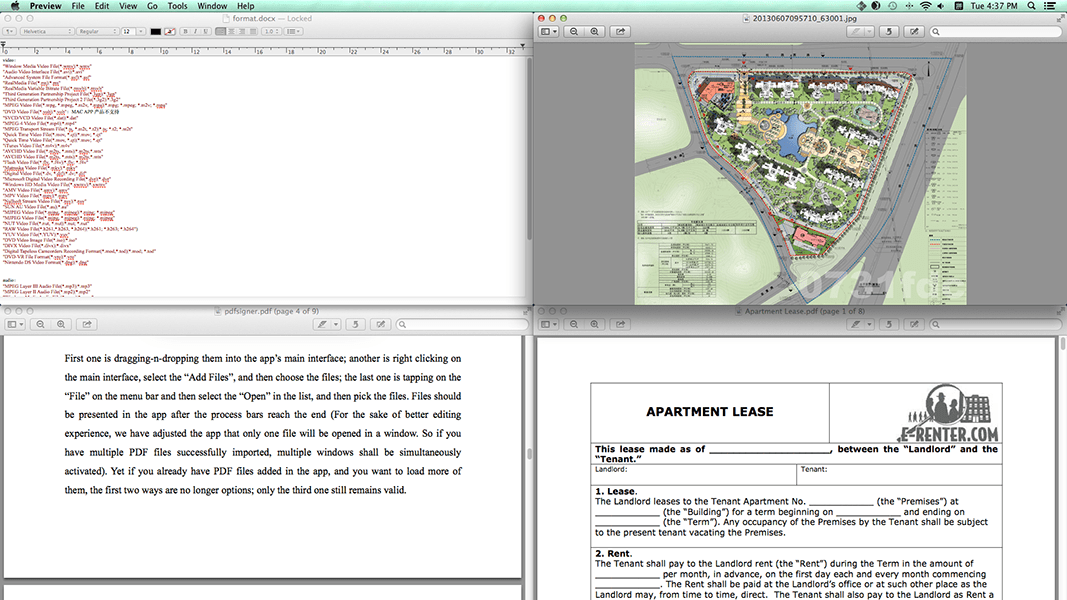
Cisdem Window Manager can split screen into various sizes and positions on Mac. All you have to do is drag windows to the edges or corners of your screen, or use our grid system to select the area that the windows should cover and you can also set keyboard shortcuts. Once you start splitting screens on mac with Window Manager you’ll wonder how you ever managed without it.
Automatically Split Screen When Dragging to Screen Edges
Window Manager comes with 7 pre-defined dragging actions by defining the left, right, top edges of your screen as ‘hot zones’. When you drag a window to the edge of the screen with Window Manager installed, the window will auto-resize to fill a specific area of the screen. Depending on where you drag a window, you can make it expand vertically, take up the entire screen, or appear side-by-side with another window.
Resize Your Window with the Innovative Grid System
If you need even more than those standard screen splitting areas, Window Manager also allows you to quickly and efficiently divide your screen into exact portions. All you have to do is click and drag within the display grid interface to select the area that you’d like your window(s) to occupy; your windows will then be resized and moved to that relative position on your screen. If that’s too much for you, you can create shortcuts instead that to automatically resize and move your window.
Be Even More Productive with Keyboard Shortcuts!
If dragging doesn’t float your boat, Window Manager is also accessible through easy to remember and customizable keyboard shortcuts. You can simply highlight the windows and use the menu bar shortcut or keyboard shortcut to instantly split screen to a specific location on your Mac.
Highly Customizable to Fit the Way You Work with Your Mac
The function and appearance of Window Manager are highly customizable to streamline your individual workflow.
- Set the edges and borders for accessing desktop icons and avoid shadow overlap.
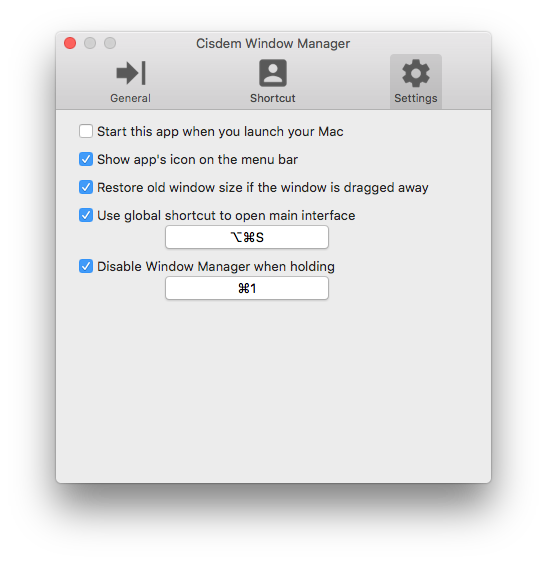
- Set the keyboard shortcuts to display and disable Window Manager app.
- Set to start Window Manager when launch your Mac.
Support about 90% of Apps and We are Adding Support to New Apps All the Time.
Safari, Chrome, Keynote, Pages, it doesn’t matter, Window Manager works with almost every application, only some apps with non-standard windows can’t be supported.
Tiny and Clean
Organization is key when it comes to split screen on Mac. Window Manager is a menu bar access that works with no compromise on stability and performance. It uses very little memory and nearly no CPU. Also it is clean, easy to install and easy to uninstall.
Specification Features

Intuitive interface seamlessly integrates with OS X.

Split screen by mouse, grid and keyboard shortcuts.

Easily set the edges and borders, can also choose to ignore edges and borders.

Choose to show or hide the app’s icon on the menu bar.

Access Window Manager from anywhere using a configurable global hotkey

Restore old window size if the window is dragged away.

Support 7 preset size/location options for easy window snap.

Support to resize your windows with the grid system.

You can easily set to customizable grid size (from 1×1 up to 10×10).

Support to set unlimited user-customizable keyboard shortcuts.

OS X 10.14 (Mojave) optimized.

Managing Windows without slowing down your computer.
User Reviews
Be the first to review “64% off Discount – Window Manager for Mac: Lifetime Subscription One Monitor, No Problem! By Simple Dragging, This App Automatically Splits Your Screen into Several Windows for Better Working Efficiency”

$9.99


There are no reviews yet.